Google Business Profile Optimisation: The 2026 Checklist for Australian Businesses
Quick answer: To optimise your Google Business Profile, verify it, use your real business name, pick the most specific primary category, complete every field, add real photos that meet Google's standards, and build a steady flow of reviews using Google's own review link and QR code. Then reply to reviews, keep your hours and details current, and avoid the shortcuts that get profiles suspended: keywords in the name, virtual office addresses, duplicate profiles and incentivised reviews. Google says "businesses with complete and accurate info are more likely to show up in local search results" (Google Business Profile Help).
Your Business Profile is what appears in Google Maps and in the map results above Google's normal listings. This checklist goes deeper on the first three steps of our local SEO guide for small businesses. Every rule below is quoted from Google's own help pages, checked in October 2026.
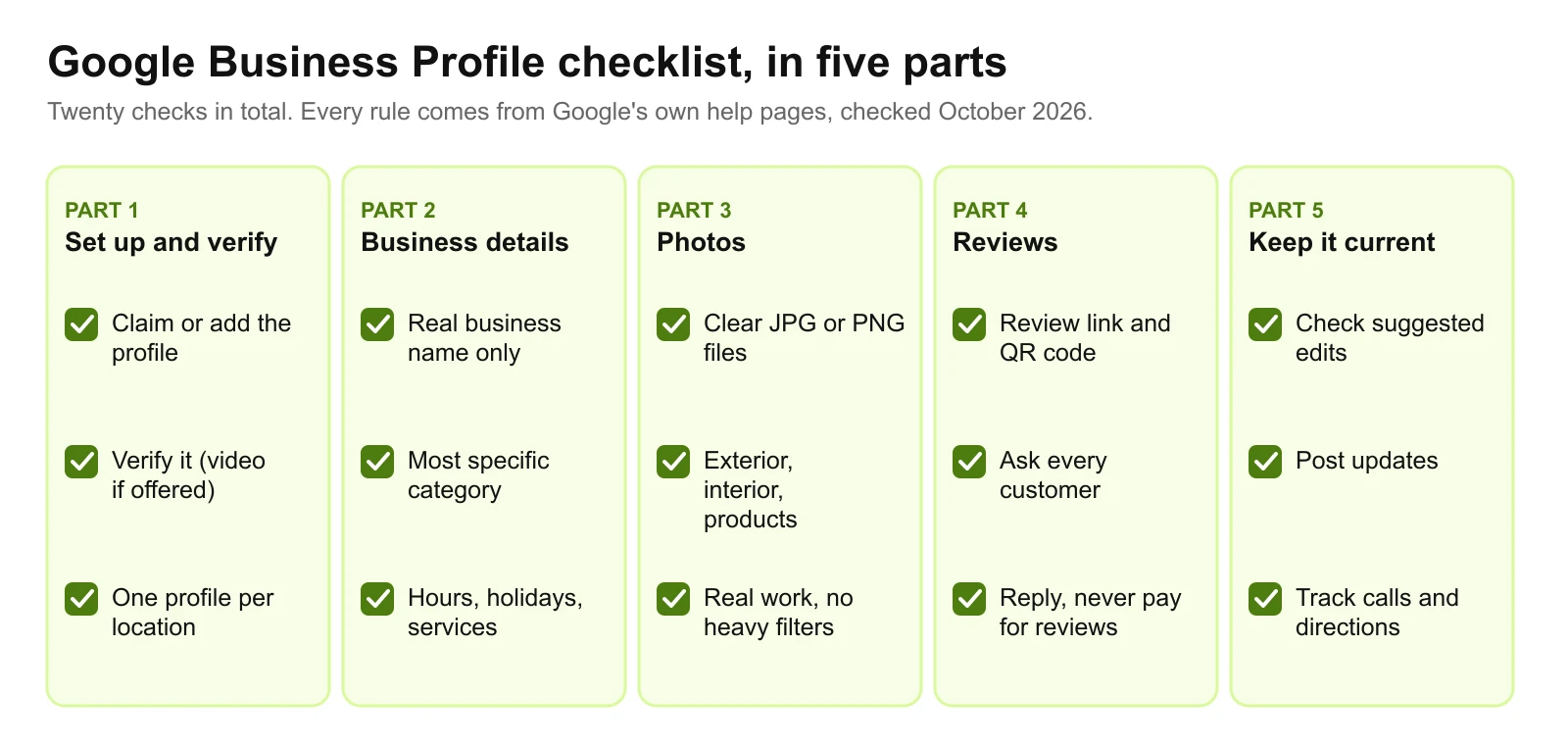
The checklist at a glance
| # | Check | Part |
|---|---|---|
| 1 | Claim or add your profile, signed in with a business Google Account | Set up |
| 2 | Verify it, using video verification if Google offers it | Set up |
| 3 | Make sure there is only one profile per location | Set up |
| 4 | Use your real-world business name, nothing added | Details |
| 5 | Choose the most specific primary category | Details |
| 6 | Show your address, or hide it and list service areas | Details |
| 7 | Set opening hours and public holiday hours | Details |
| 8 | Add a phone number that a person answers | Details |
| 9 | Link to the page on your website that best matches the profile | Details |
| 10 | List every service, and products if you sell them | Details |
| 11 | Fill in attributes, such as accessibility | Details |
| 12 | Add photos that meet Google's standards | Photos |
| 13 | Add at least three photos of each type that applies | Photos |
| 14 | Create your review link and QR code | Reviews |
| 15 | Ask every customer, the same way, every time | Reviews |
| 16 | Reply to reviews, briefly and politely | Reviews |
| 17 | Never offer anything in exchange for a review | Reviews |
| 18 | Check for edits suggested by others | Keep current |
| 19 | Post updates when something changes | Keep current |
| 20 | Track calls, directions and website clicks | Keep current |
Part 1: Set up and verify
1. Claim or add your profile
Search Google for your business name and suburb. If a profile already exists, claim it; if not, add it at business.google.com. Google lets you use any email address for the Google Account, including a company address, so use one the business controls rather than a staff member's personal Gmail (Google Business Profile Help). If others help manage the profile, add them as managers rather than sharing one login.
2. Verify it
Google says you need to verify your business to edit your info and interact with customers, and that verification methods "are automatically determined by Google and can't be changed". Options include phone or text, email and video. Google adds: "If your business is eligible for video verification, we recommend that you use this option" (Google Business Profile Help). If you verify by phone, answer the call yourself, because Google says automated phone menus won't get the code.
3. One profile per location
Google's guidelines say "Do not create more than one page for each location of your business" (Google's guidelines). If you find an old duplicate, ask Google to merge or remove it rather than running two.
Part 2: Business details
4. Your real business name
Google says including unnecessary information in your business name "isn't permitted, and could result in the suspension" of the profile. "Harbour Physio" is fine; "Harbour Physio Glenelg Sports Injury Clinic" is not, unless that really is your registered and signed name.
5. The most specific primary category
Google asks for categories "that are as specific as possible, but representative of your main business", and says not to "use categories solely as keywords". The primary category carries the most weight, so choose the one that describes most of your work, then add secondary categories only for services you really offer.
6. Address or service areas
If customers visit you, show the address. If you visit them, hide it and list the areas you serve, keeping the overall area within what Google describes as "about 2 hours of driving time from where your business is based". A rented mailing address you don't work from, "also known as a virtual office", isn't eligible.
7. Opening hours, including holidays
Wrong hours send customers to a locked door. Set special hours for public holidays, and remember they differ between states, such as Adelaide Cup Day in South Australia or the King's Birthday, which falls on different dates around the country.
8. A phone number a person answers
Use the number customers actually call, and keep it the same as on your website and other listings.
9. The right website link
Link to the page that best matches the profile: your homepage for a single location, or the location's own page if you have several.
10. Services, products and description
List every service you sell, in your customers' words, and write a business description. Google asks you to use it for "useful information on services and products offered, as well as the mission and history of your business" and to be "upfront and honest". Retailers can also show products. Google says complete information "helps customers know what you do, where you are, and when they can visit" (Google Business Profile Help).
11. Attributes
Fill in whatever applies, such as wheelchair access, parking or payment options. They answer questions customers would otherwise ring about.
Part 3: Photos
12. Meet Google's photo standards
Google lists them as follows (Google Business Profile Help):
| Standard | Google's requirement |
|---|---|
| Format | JPG or PNG |
| File size | Between 10 KB and 5 MB |
| Recommended resolution | 720 px tall, 720 px wide |
| Minimum resolution | 250 px tall, 250 px wide |
| Quality | In focus, well lit, and "no significant alterations or excessive use of filters or AI" |
Google also notes that your business must be verified before your photos and videos show on the profile.
13. Cover what customers check
Google suggests at least three photos of each type that applies: exterior photos so customers recognise the business as they approach, interior photos for the feel of the place, product photos of your most popular items, and photos at work showing your team providing the service. For a tradie with no premises, photos at work and finished jobs do most of the work, on the profile and on your tradie website.
Part 4: Reviews
Reviews show next to your profile in Maps and Search, and Google says "more reviews and positive ratings can help your business's local ranking" (Google Business Profile Help). This part is where most profiles fall behind.
14. Create your review link and QR code
On a computer, go to your Business Profile, select Read reviews, then Get more reviews. Select Copy for the link, or right-click the QR code and save the image. Google says review QR codes "can only be generated on a computer browser, not on mobile devices" (Google Business Profile Help).
15. Ask every customer, the same way, every time
Google's own suggestions for sharing the link are on receipts, in thank-you emails, at the end of a chat, and as a printed QR code in your store. It also mentions email, WhatsApp messages and Facebook posts. Ask at the moment the customer is happiest: when the job is done or the order arrives. Customers need to be signed in to a Google Account to leave a review, though Google notes they can set one up with a non-Gmail address.
16. Reply briefly and politely
Google's advice on replies is to be "professional and polite", keep them short, make each one count instead of sending the same thank-you to everyone, and be "conversational, not promotional" (Google Business Profile Help). With a negative review, never share the reviewer's private information, acknowledge any genuine mistake, and invite them to call or email so you can sort it out privately. Google also points out that "a mix of positive and negative feedback often feels more trustworthy". If a review breaks Google's content policies, you can report it to Google rather than argue with it in a reply.
17. Never pay for reviews
Google says offering incentives, "like free or discounted goods or services", in exchange for reviews "is considered fake & misleading content and is strictly prohibited". When it finds fake engagement, Google may stop the profile receiving new reviews for a period, unpublish existing reviews, or show customers a warning that fake reviews were removed (Google Business Profile Help). In Australia, the ACCC adds that "it's against the law for a business to create fake or misleading reviews or to arrange for others to do so" (ACCC).
Expect the rating to lag. Google says the review score is the average of all ratings published on Google, and that after a new review "it may take up to 2 weeks to get an updated review score" (Google Business Profile Help).
Part 5: Keep it current
18. Check suggested edits
Customers and Google can suggest changes to your profile, such as new hours or a different category. Log in regularly and accept or reject them, so your details stay the ones you chose.
19. Post updates when something changes
New services, holiday closures, a recent project. Updates keep the profile current for customers comparing you with others.
20. Track what it brings in
Your profile's performance view shows calls, direction requests and website clicks, and the searches that found you. Compare month on month, and ask new customers how they found you.
What to do if your profile is suspended
Google says it "may suspend or disable Business Profiles that don't follow our guidelines" (Google Business Profile Help). The usual causes are the ones in this checklist: keywords in the name, a virtual office address, duplicate profiles, or fake reviews.
- Fix the cause first. Rename the profile to your real name, correct the address, or remove the duplicate.
- Don't create a new profile. Google's instruction is plain: "Do not create a new Business Profile for the same business."
- Appeal through Google's appeals tool. It shows the reason for the decision and the policy involved.
- Attach evidence. Google lists official business registration, a business licence, tax certificates and utility bills such as electricity, phone, water or internet. Check that the name and address on each document match the profile.
- Get it right the first time. Google says "appeals can only be submitted once", so include everything before you submit.
Common mistakes
- Adding suburbs or services to the business name
- Using a virtual office or PO box as the address, or a co-working desk that isn't signed, staffed and open to customers during your hours
- Leaving public holiday hours unset
- Stock photos, or photos heavily edited with filters or AI
- Asking only happy customers for reviews, or offering a discount for one
- Copy-paste replies to every review
- Creating a second profile after a suspension
Do it yourself, or get help?
Everything in this checklist is free to do yourself. Google Business Profile costs nothing to set up or manage. If you would rather hand it over, Loudachris, an Adelaide agency that publishes its prices, charges $750 plus GST for a one-off Google Business Profile optimisation (checked October 2026). Our guide on how to choose a local SEO agency covers what to ask, and our local SEO Adelaide page sets out what we do.
The profile works best alongside a website that confirms what it says, with a page for each service and the areas you cover. Our small business websites are built that way, starting with a two-page website from $500. We'll review your profile, listings and website as part of a free website and SEO audit and tell you which of these twenty checks to fix first.
Work With wow.digital
If you would rather have this handled for you, these pages explain what we do and where we work:
Keep Reading
Frequently asked questions
How do I get a Google review link for my business?
On a computer, go to your Business Profile, select Read reviews, then Get more reviews, and select Copy. Share the link on receipts, in thank-you emails, at the end of a chat, or by email, WhatsApp or a Facebook post.
How do I make a Google review QR code?
Open your Business Profile in a computer browser, select Read reviews, then Get more reviews, then right-click the QR code and save the image. Google says review QR codes can only be generated on a computer browser, not on mobile devices. Print it for your counter, invoices or van.
Why was my Google Business Profile suspended?
Google suspends profiles that don't follow its guidelines. Common causes are keywords added to the business name, a virtual office or mailing address used as the business address, duplicate profiles for the same business, and fake or incentivised reviews. Fix the cause, then appeal through Google's appeals tool.
Can I offer a discount in exchange for a Google review?
No. Google says offering incentives, such as free or discounted goods or services, in exchange for reviews is strictly prohibited, and it can restrict the profile. In Australia, the ACCC says creating fake or misleading reviews, or arranging for others to, is against the law.
How long does it take for a new review to change my rating?
Google says that after someone leaves a new review, it may take up to two weeks for the review score to update. The score is the average of all ratings published on Google for the business.
Is Google Business Profile free?
Yes. Creating, verifying and managing a Google Business Profile is free. Some businesses pay an agency to set it up or manage it; Loudachris, an Adelaide agency, publishes a one-off optimisation at $750 plus GST (checked October 2026).